
How to Delete Your X (Twitter) Account Permanently
Learn how to deactivate and permanently delete your X (Twitter) account, what to check before deleting it, and what happens during the 30-day waiting period.

Deleting an X (Twitter) account is not complicated, but it is easy to misunderstand the process. X does not remove your account the moment you tap a delete button. First, you deactivate the account. If you do not sign back in during the waiting period, the account can then move toward permanent deletion.
People leave X for different reasons: privacy concerns, too much screen time, a compromised account, a brand reset, or simply wanting a fresh start. Whatever your reason, it is worth taking a few minutes to understand what will disappear, what may remain visible elsewhere, and what you should save before starting.
This guide explains how to delete your X account properly from desktop or mobile, plus the checks you should make before confirming deactivation.
X currently documents a 30-day deactivation window. Platform settings can change, so confirm the current instructions in the X Help Center before proceeding.
Before You Delete Your X Account
Before you begin, review these points. They can save you from losing access to something important.
Deactivation Comes First
X uses a deactivation period before permanent deletion. After you deactivate the account, it is no longer shown in the same way to other users. If you do not log back in during the waiting period, the account will continue toward permanent deletion.
For many accounts, this waiting period is 30 days. If you sign in again before the period ends, you may reactivate the account.
Uninstalling the App Is Not Enough
Removing the X app from your phone does not delete your account. It only removes the app from that device. Your profile, posts, messages, and account settings can still exist unless you deactivate the account through X settings.
Download Your Data First
If you want a copy of your posts, media, account history, or direct message data, request an archive before deleting the account.
You can usually find this under:
Settings and privacy → Your account → Download an archive of your data
The archive may take time to prepare. Wait until you have downloaded it before deactivating the account.
Check Apps That Use Your X Login
If you use X to sign in to third-party apps, games, communities, or tools, change those login methods first. Once your X account is deactivated or deleted, you may lose access to services that depend on that login.
How to Delete Your X Account Permanently
Once you are ready, follow these steps.
1. Sign In to X
Open x.com in a browser or use the X mobile app. Sign in to the account you want to remove.
If you manage more than one account, double-check the profile picture, handle, and account name before continuing.
2. Open Settings and Privacy
On desktop, choose:
More → Settings and support → Settings and privacy
On mobile, tap your profile icon or menu button, then open:
Settings and support → Settings and privacy
3. Go to Your Account
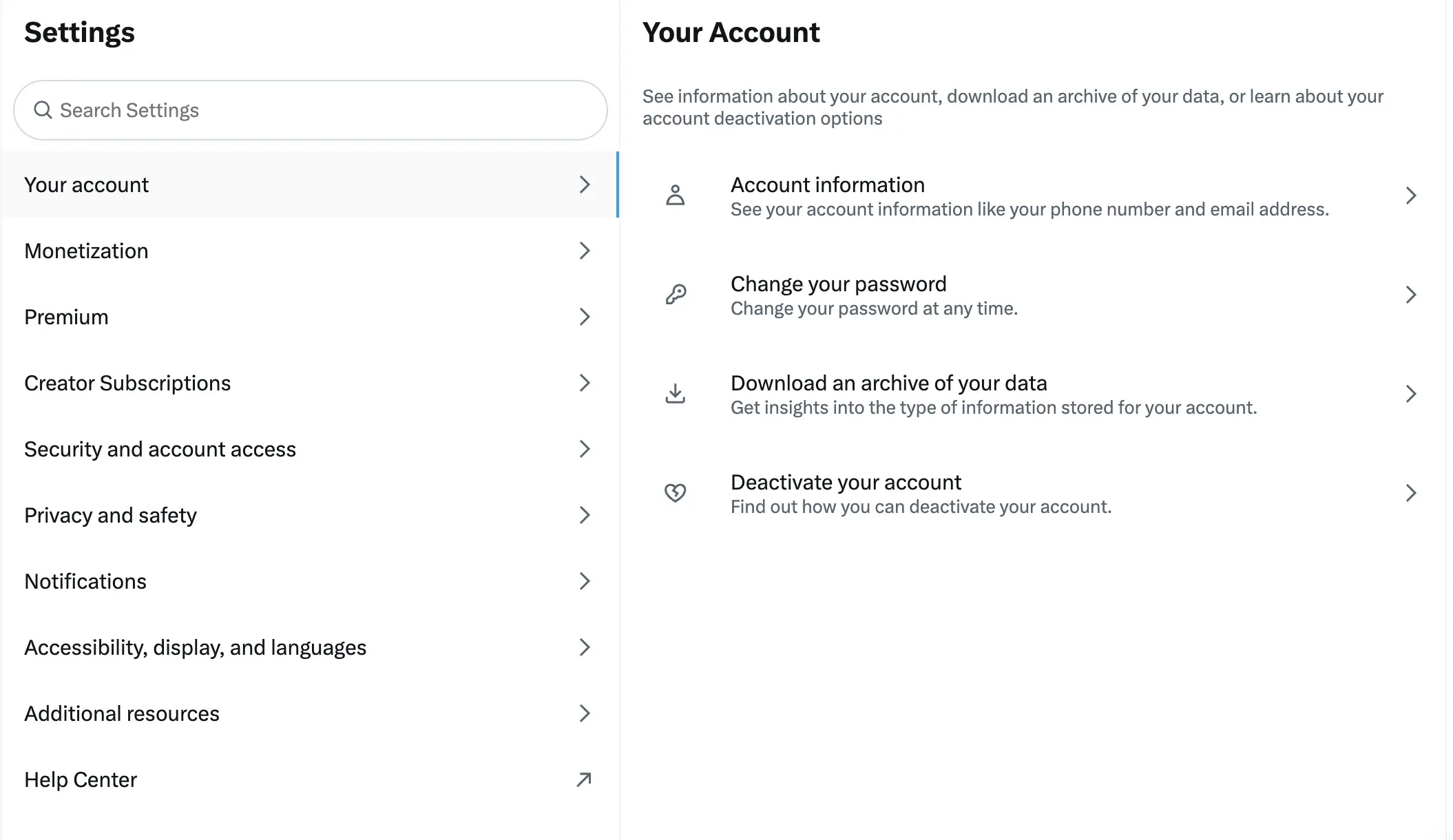
Inside settings, select Your account. Look for the option called Deactivate your account.
This is the step that starts the deletion process. X uses the word “deactivate” because the account is not permanently removed immediately.
4. Read the Deactivation Details
X will show information about what deactivation means. Read it carefully before continuing.
In general, you should expect:
- Your account to enter a deactivated state.
- A waiting period before permanent deletion.
- The account to reactivate if you log in again during that period.
- Some content to remain visible outside X if it was copied, embedded, indexed, screenshotted, or saved by others.
5. Confirm Deactivation
If you are sure, choose Deactivate and enter your password when prompted. After confirmation, X will deactivate the account and the waiting period begins.
Do not sign in again unless you want to restore the account.
What Happens After Permanent Deletion?
After the waiting period ends and the account is permanently deleted, your profile should no longer be available on X. Posts, followers, media, and account details tied to that profile are removed from normal access.
There are still a few practical limits to understand:
- Your previous username may become available for someone else to use.
- Search engines may keep cached copies for a while.
- Screenshots, embeds, quotes, and third-party archives may remain outside X.
- X may retain certain information when required for legal, security, or operational reasons.
In other words, deleting your account removes your presence from X, but it cannot erase every copy of content that already moved elsewhere.
Can You Cancel Account Deletion?
Usually, yes, but only during the deactivation window. If you log back in before the waiting period ends, X may reactivate the account.
If your goal is to delete the account permanently, avoid logging in from any browser, app, or connected service during that time. Also remove saved sessions from devices you no longer use.
Final Checklist
Before you deactivate your account, make sure you have:
- Downloaded your data archive if you want a copy.
- Changed login methods for third-party apps that use X.
- Saved any photos, videos, or posts you still need.
- Checked that you are deleting the correct account.
- Understood the waiting period and reactivation rule.
Final Thoughts
Deleting an X account is mostly a matter of following the right path in settings, but the preparation matters. Download your data, check connected apps, and make sure you are ready to stay logged out during the waiting period.
If you simply need a break, deactivation gives you time to reconsider. If you are certain, avoid logging back in and let the process complete.