
How to Download Twitter (X) Videos on iPhone
Learn how to download videos from public Twitter/X posts on your iPhone using Safari, find saved files, move videos to Photos, and fix common download issues.
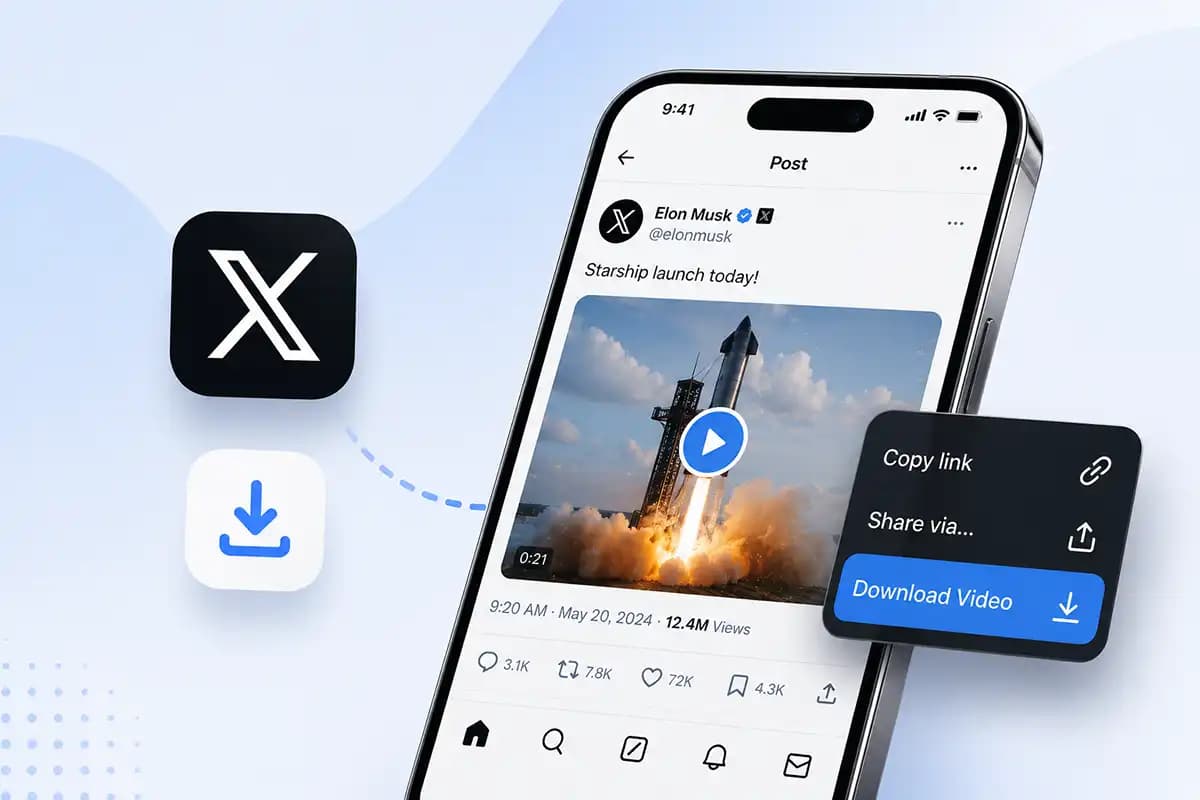
Saving a clip from Twitter (now called X) on an iPhone is not always as straightforward as saving a photo. Depending on the link and your iOS settings, Safari may download the file or open it in a new tab.
The usual process is to copy a public X post link, paste it into our downloader in Safari, choose an available video version, and save the file. This guide also explains where downloads go and how to move a video from Files to Photos.
Only download content that you own, have permission to use, is in the public domain, or may otherwise be used legally. A publicly visible post does not automatically give you permission to copy or redistribute its media.
Before You Start
You need the URL of the specific X post containing the video. A profile, search, or timeline URL will not identify the media.
This method is intended for publicly accessible posts. Protected accounts, deleted or restricted posts, expired live broadcasts, and unsupported formats may not work.
Check that your iPhone has enough free storage, especially before downloading a long or high-resolution video.
How to Download an X Video on iPhone
1. Copy the Link to the Post
Open the X app and find the post containing the video. Tap the Share icon below the post, then select Copy link or Copy link to Post. X documents the same process in its guide to finding a post's URL.
Copy the link from the individual post rather than the account profile.
2. Open the Downloader in Safari
Open Safari and go to x-twitter-downloader.com. You do not need to install a separate iPhone app for this workflow.
Safari's download manager connects directly with Apple's Files app. Other iOS browsers may use a slightly different flow.
3. Paste and Process the Link
Tap the input field, press and hold if necessary, and choose Paste. Check that the complete post URL appears, then tap Download.
The downloader will read the public post and list the video versions it can find. If no result appears, confirm that the post still exists, is public, and contains a playable video rather than only an external link.
4. Choose an Available Video Version
If several options appear, select the resolution that fits your needs. Higher resolutions look sharper but create larger files; lower resolutions use less storage.
Not every post provides an HD version. The choices depend on the media available for that post.
5. Save the Video
Tap the download option for your preferred version. Safari may begin downloading the file immediately, ask you to confirm the download, or open the video in a browser tab.
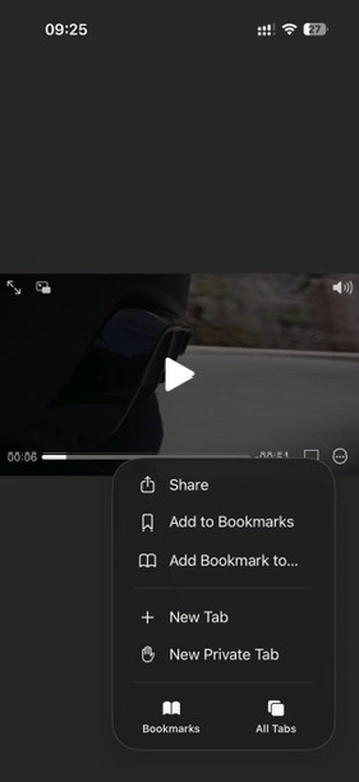
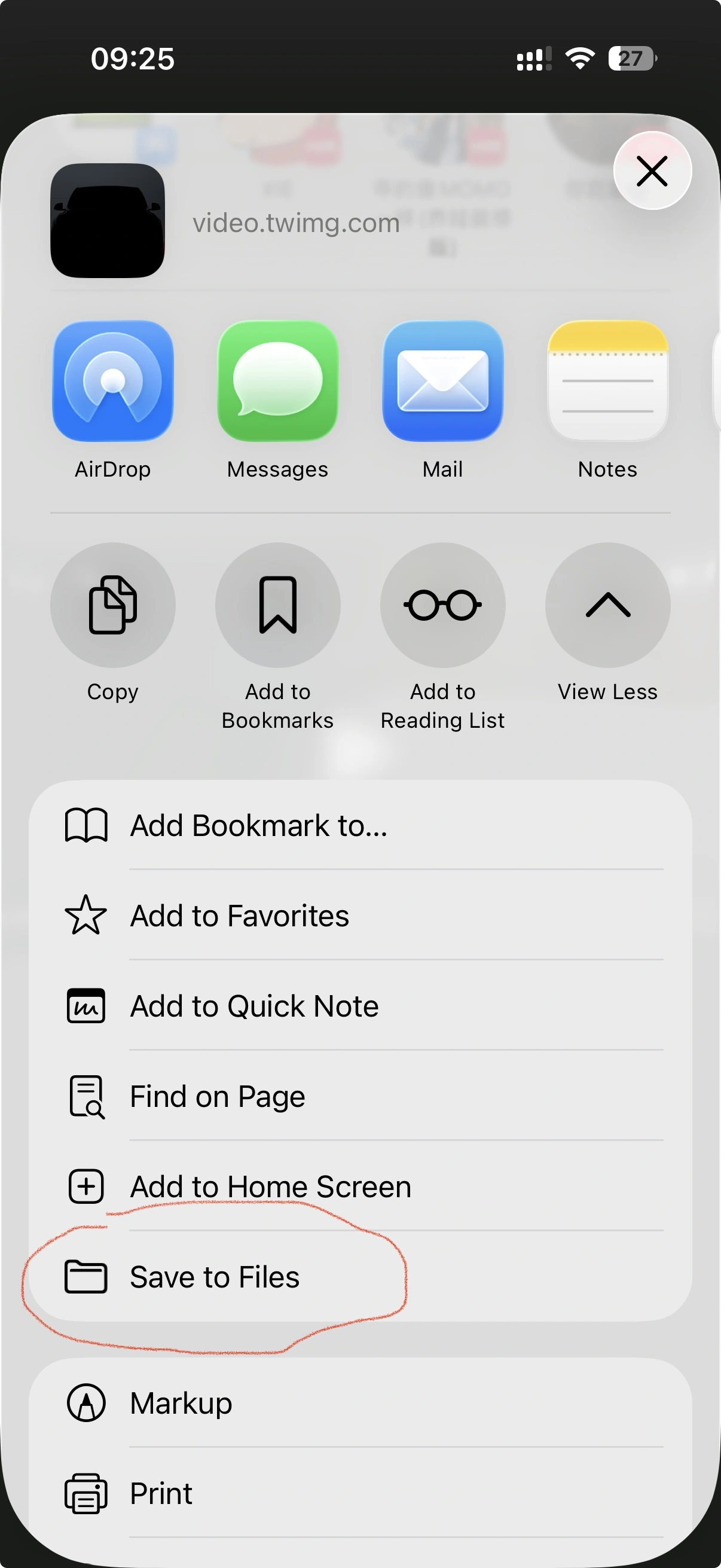
If the video opens instead of downloading, use Safari's Share button and look for Save to Files in the share sheet:
Choose a folder such as Downloads under iCloud Drive or On My iPhone, then tap Save:
Buttons can differ between iOS versions. Save Video normally sends a compatible video to Photos; otherwise, use Save to Files.
Where Does the Downloaded Video Go?
A Safari download usually appears in the Downloads folder in Files. You can also tap Safari's download indicator near the address field to view recent downloads.
To find the file later:
- Open the Files app.
- Tap Browse.
- Open iCloud Drive or On My iPhone.
- Open the Downloads folder, or the folder you selected when saving.
The default location depends on your Safari settings, so check both iCloud Drive and On My iPhone. Apple's guide to finding downloads on iPhone or iPad also explains where to look.
Remember that Files and Photos are separate libraries. A video saved to Files will not automatically appear in the Photos app.
How to Move the Video from Files to Photos
If you want to edit the clip in an app that reads from your photo library or find it alongside your camera videos, move a compatible file to Photos:
- Open Files and locate the downloaded video.
- Tap the video to confirm that it plays correctly.
- Tap the Share button.
- Choose Save Video.
- Open Photos and check Recents or the Videos media type.
If Save Video is missing, the file may be incompatible or incomplete. Try another available version.
Troubleshooting Common iPhone Download Problems
The Downloader Cannot Find the Video
Copy the individual post link again and remove any extra text. Protected, deleted, region-restricted, age-restricted, or inaccessible posts may not work.
The Video Opens in Safari Instead of Downloading
For some media links, this is normal. Use Safari's Share menu and select Save to Files.
The Download Is Missing
Check Safari's recent downloads, iCloud Drive > Downloads, and On My iPhone > Downloads. You can also search Files by name or .mp4.
The Download Stops or Produces an Incomplete File
Check your connection and free storage. Try the download again, or select a smaller version if available.
The Video Is in Files but Not Photos
Choose Share > Save Video from Files. If that option is unavailable, try a different version because Photos may not support the current file.
Frequently Asked Questions
Do I need an X account to download a video?
The downloader needs a publicly accessible link. X may require you to sign in to view or copy some posts, but never provide your X password to a third-party downloader.
Can I download videos from protected accounts?
Generally, no. Protected content is not publicly accessible, even if you follow the account. Do not bypass the owner's privacy settings.
Will the video always be available in HD?
No. Resolutions depend on the original post. If HD is not listed, the downloader cannot create detail missing from the source.
Why does the video save to Files instead of Photos?
Safari treats many videos as files and sends them to Downloads. Move a compatible video to Photos with Share > Save Video.
Do I need a dedicated downloader app?
No dedicated app is required for this method. Safari, the Files app, and a valid public post URL are enough for the standard workflow.
Final Thoughts
To download an X video on iPhone, copy the correct post URL and follow Safari's file flow. If the video does not go directly to Photos, save it to Files first. Respect the creator's rights and the post's context before sharing, editing, or republishing anything you save.