
How to Make Your X (Twitter) Account Private: A Step-by-Step Guide
Learn how to protect your tweets and make your X (Twitter) account private. Control who sees your posts, manage your followers, and secure your digital footprint.
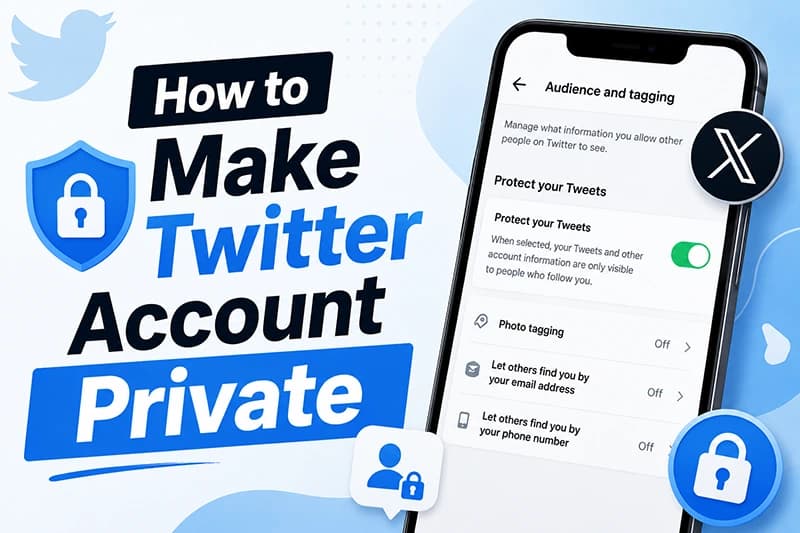
In today’s world, your online presence matters more than ever. Many people use X (formerly Twitter) to share their opinions, daily updates, or professional thoughts. But sometimes, you might not want everyone on the internet to see what you’re posting. That’s when learning how to make your X (Twitter) account private becomes crucial.
Protecting your posts lets you approve new followers and limits post visibility to followers, but followers can still capture or share what they can see. X also notes that media links can be shared separately. This guide explains what changes and how to update the setting.
What Does It Mean to Make Your Twitter Account Private?
When you decide to make your Twitter account private, your tweets and profile activity are immediately hidden from the general public. Only the followers you explicitly approve can see your posts. This step turns your public profile into a locked, invite-only space.
Here’s exactly what happens when you go private:
- Restricted Visibility: Only approved followers can see your tweets.
- Search Engine Visibility: X says protected posts should not appear in third-party search engines, although old cached or copied material can take time to disappear from services X does not control.
- Profile Lock Icon: Your profile will display a padlock icon next to your name, signaling it's private.
- Disabled Retweets: Followers cannot use the retweet button to share your posts with their own audience.
- Manual Approvals: New followers need your manual approval before they can see your timeline.
This is an excellent way to create a safe online space if you want to limit exposure, but it also comes with some limitations, which we’ll discuss later.
Step-by-Step: How to Make Your Twitter Private on Desktop
If you’re browsing X on your computer, here is exactly how to lock your profile in just a few clicks:
- Log in to your X (Twitter) account.
- On the left sidebar, click on More, then select Settings and privacy.
- Select Privacy and safety.
- Click on Audience and tagging.
- Toggle the checkbox next to Protect your Tweets.
- Save your changes.
That’s it! Once enabled, anyone who wants to follow you will need your approval before they can access your content.
Step-by-Step: How to Make Your Twitter Private on Mobile (iOS & Android)
Most users browse X on their phones. If you’re wondering how to make your account private on an iPhone or Android device, the process is incredibly simple:
- Open the X (Twitter) app on your device.
- Tap your Profile icon in the top-left corner of the screen.
- Select Settings and privacy from the slide-out menu.
- Go to Privacy and safety, then tap on Audience and tagging.
- Switch on the Protect your Tweets toggle.
Now your account is completely private on mobile as well! From this moment forward, only approved followers can interact with your tweets.
[!NOTE] Even after going private, your existing followers will still be able to see your tweets without needing to send a new request. If there are people you no longer want to share content with, you will need to manually remove them from your follower list.
Things to Know Before You Go Private
While it’s easy to toggle your account to private, there are some important consequences to keep in mind:
- Old Tweets Don’t Disappear: They remain visible to your approved followers.
- Limited Reach: Protected tweets won’t appear in public X searches or trending hashtag feeds.
- No Retweets Allowed: While followers can’t natively retweet your posts, remember that they can still take screenshots.
- Replies May Still Be Visible: If you reply to a public account, your reply might still be visible within that public thread.
- Reverting to Public Opens Everything: If you ever decide to switch back to a public profile, all your previously protected tweets will instantly become visible to the world again.
Additional Privacy Tips Beyond Private Mode
Setting your account to private is a fantastic first step, but it’s not the complete solution. To truly maximize your online privacy, consider taking these extra precautions:
- Review Your Followers: Regularly go through your follower list and remove accounts you don’t recognize or trust. You can quietly "soft block" someone by blocking and immediately unblocking them, which removes them as a follower without sending a notification.
- Check Tagging Settings: Under your privacy settings, adjust whether others are allowed to tag you in photos.
- Limit Discoverability: Prevent strangers from finding your account by disabling discoverability via your phone number or email address.
- Manage Direct Messages (DMs): Restrict who can send you direct messages to avoid spam and unwanted contact.
By combining these proactive steps with a private account, you’ll have much stronger, robust control over your entire X presence.
FAQ – Common Questions About Private Twitter Accounts
1. Does making Twitter private delete old tweets?
No, your old tweets remain. They are simply hidden from non-followers. If you want to permanently erase tweets, you’ll need to delete them manually.
2. Can I make only certain tweets private?
No, it’s all or nothing. You cannot lock individual tweets. The only way to control visibility on a tweet-by-tweet basis is by deleting them entirely.
3. Will my profile still appear in Google searches?
Your profile page (name, bio, and profile picture) may still show up, but your actual tweets will no longer appear in search engine results once your account is locked.
4. How do I switch back from private to public?
Simply follow the same steps to navigate to Privacy and safety -> Audience and tagging, and toggle off Protect your Tweets.
5. How do I make my account private without losing followers?
When you switch to private mode, your existing followers remain intact. You won't lose anyone, but you might want to review your list manually if total privacy is your goal.
Conclusion
If you’re looking for more control over who sees your thoughts, learning how to make your X (Twitter) account private is the best first step you can take. It provides peace of mind, limits unwanted exposure, and ensures that only approved followers can view and engage with your content.
However, remember that privacy doesn’t stop at the toggle switch. Always be mindful of who follows you and manage your digital history responsibly to truly take charge of your online presence!